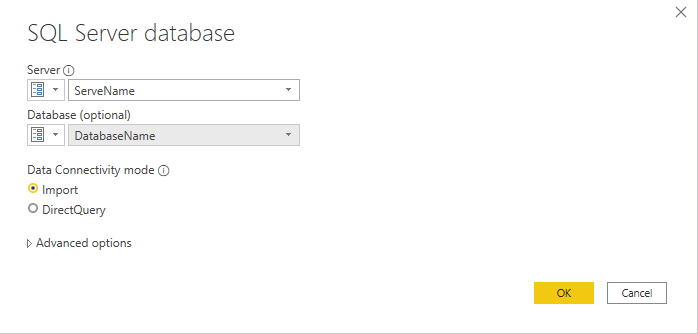
In Power BI dataset or reports, parameters serve as a way to easily store and manage a value that can be changed after deployed. You could set up the parameters like database server name and database names inside Power BI solution and update through Power BI Settings as discussed before.
In this blog, we will use PowerShell to update the parameters.
Here is the script to update the following two parameters on dataset named “MyReport”
inside workspace named “My Workspace”.
# Install-Module -Name MicrosoftPowerBIMgmt
# Connect to Power BI As admin
$User = "admin@mycompany.com"
$PW = "Password"
$SecPasswd = ConvertTo-SecureString $PW -AsPlainText -Force
$myCred = New-Object System.Management.Automation.PSCredential($User,$SecPasswd)
Connect-PowerBIServiceAccount -Credential $myCred
# Get Power BI Workspace ID
$WSID = Get-PowerBIWorkspace -Scope Organization -Name 'My Workspace'| ForEach {$_.Id}
# Get Power BI Dataset ID
$DSIDMyReport = Get-PowerBIDataset -Scope Organization -WorkspaceId $WSIDAdmin | Where {$_.Name -eq "MyReport"} | ForEach {$_.Id}
# Construct Url with Dataset ID
$urlUpdateParams = "/datasets/" + $DSIDMyReport + "/Default.UpdateParameters"
# Update Parameters Body
$body = '{
"updateDetails": [
{
"name": "DatabaseName",
"newValue": "NewDBNamev"
},
{
"name": "ServeName",
"newValue": "myserver.database.windows.net"
}
]
}'
$content = 'application/json'
# Update Dataset Parameters
Invoke-PowerBIRestMethod -Url $urlUpdateParams -Method Post -Body $body -ContentType $content
As enhancement, you could also use service principal as discussed in here to facilitate the login.