When
SharePoint administrator configured Powerview for you, you might run into
different errors during the first implementation. Here are some common errors
you will encounter and possible solutions.
1. The
first error looks like this “An error occurred while loading the model for the
item or data source
'http://spsbx15/sites/Harry/PowerView/HelloWorldPicnicPowerViewRTM-2010.xlsx'.
Verify that the connection information is correct and that you have permissions
to access the data source.”

There
are multiple reasons that might cause this error. Here are the most popular two reasons and solutions.
Issues #1: Incorrect
Excel Services Configuration for PowerPivot in SharePoint 2013.
You
could follow this blog to verify Excel Services Configuration for PowerPivot in
SharePoint 2013. and the solution is to correct
SSAS database setting for excel service.
SharePoint
central admin -> Manage service applications -> Excel Services
Application -> Data Model Settings ->
Excel Services Application Data Model Settings -> Add the correct SSAS
database like “SPSSASS\POWERPIVOT”.
Issues #2: The Powerview file is larger than configured maximum file upload size (PowerPivot for SharePoint).
You could verify the ULS log that should have the following error.
Unexpected Throwing
Microsoft.ReportingServices.ReportProcessing.ReportProcessingException: ,
Microsoft.ReportingServices.ReportProcessing.ReportProcessingException: Cannot
create a connection to data source 'TemporaryDataSource'. --->
System.InvalidOperationException: Call to Excel Services returned an error.
---> Microsoft.AnalysisServices.SPClient.Interfaces.ExcelServicesException:
Wow, that's a big workbook. Unfortunately, we can't open a workbook larger than
10 MB. --->
Microsoft.Office.Excel.Server.WebServices.ExcelServerApiException: Wow, that's
a big workbook. Unfortunately, we can't open a workbook larger than 10 MB. at Microsoft.Office.Excel.Server.WebServices.ApiShared.ExecuteServerSessionMethod(Boolean
hasSessionId, String sessionId, CoreServerSessionMethod coreWebMethod, String
name,... 2bdca59c-0801-00e4-e462-3d10e838ab6a
The solution is to increase the PowerPivot Maximum File Upload Size as described here.
SharePoint
central admin -> Manage service applications -> Excel Services
Application -> Trusted File Locations -> Edit the trusted location like "http://" -> Adjust "Maximum Workbook Size" to larger size.

2. The second error looks like "Sorry, something went wrong An unexpected error has occurred.". The ULS logs might show the following error.
"The requested service,
'http://spsbx15:32843/586f5b2b0ac34da6b57e9dd817fa06d3/ReportingWebService.svc'
could not be activated. See the server's diagnostic trace logs for more
information."
This is the reporting service stability issue we have reported early. The workaround is to identify the app pol that is running reporting service and restart it as described in the blog. We are working with Microsoft on this and hope to find a permanent solution.
3. The third error likes "Unsupported Reporting Services Functionality" as in the following screenshot.

This issue is similar to the second error and you could resolve it by following the steps as descibed in erro #2.
4. The forth error look like "Report Server could not access this web application's content database." As in the following screenshot.

The major issues for this is the app pool running the reporting services does not have permission to the new content database created. The solution is to grant the access to the app pool account using the following Powershell commands. Please note, this needs to to run whenever a new content database created!
$w = Get-SPWebApplication –Identity http://spsbx15
$w.GrantAccessToProcessIdentity("na\spsvc15")
5. The fifth error looks like "A communication error occurred within the Reporting Service endpoint on this SharePoint site.".

This must be one of the most clear error message that you should verify whether "SQL Server Reporting Services Service" is running on SharePoint server and "SQL Server Analysis Services (POWERPIVOT) window service is running on the SSRS server. Restart them if necessary.
6. The sixth error is user could not find the "PowerPivot Gallery" when adding app to the site or cannot add "PowerView" web part to a page.
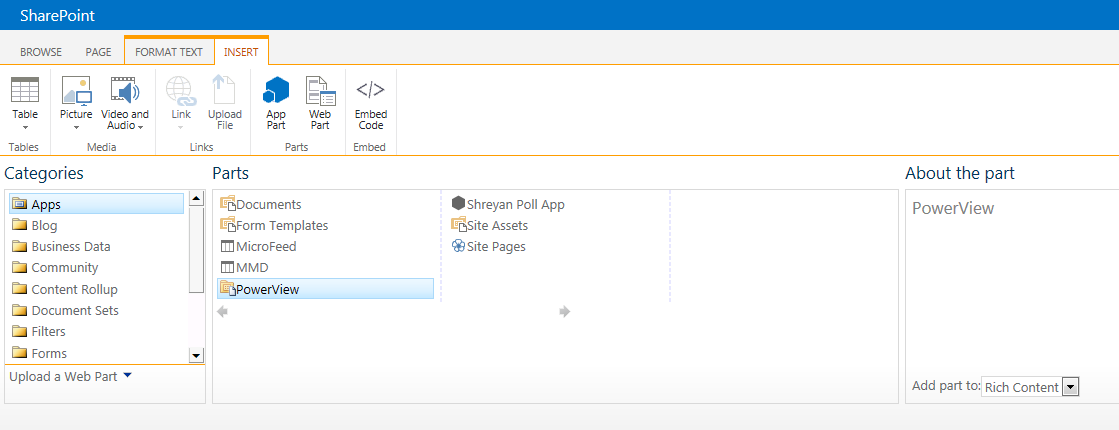
The issue is related to the PowerView site collection features not activated. You should activate the following two features.
- Power View Integration Feature
- PowerPivot Feature Integration for Site Collections
7. The seventh error looks like "Server cannot be found. Please contact your administrator." from SharePoint UI. The ULS logs normally will display the real error "The versions of the Reporting Services SharePoint Add-In and the Reporting Services service application are incompatible or don’t support this functionality."

This issue normally related to Reporting Services SharePoint Add-In
component on SahrePoint side is different on the SQL database server
side. You could verify the version on SQL database side and reinstall the SharePoint Reporting Services SharePoint Add-In using the same installer.

There are some other error you may encounter and we might add to the blog in the future.


