Friday, March 22, 2019

How to debug and resolve sp pnp js Error making HttpClient request in queryable [404]

If you are using SP PNP JS in your SharePoint framework project, you might run into the issue you might getting the following error.

"Error making HttpClient request in queryable [404]"

If the site your are refer to is "https://mycompany.sharepoint.com/yoursite", you could inspect the page and the detailed error should look like one of the two possible situation.

https://mycompany.sharepoint.com/_api/web/lists/getByTitle('Pubs')?$select=ListItemEntityTypeFullName 404

https://mycompany.sharepoint.com/yoursite/SitePages/_api/web/lists/getByTitle('Pubs')?$select=ListItemEntityTypeFullName 404


This is very clear the PnP JS did not get the correct site URL. The first went to the root and the second is from the "SitePages". The root cause is the SP PnP JS does not get the correct context if the request is coming from site page or many be redirected.

There are at least two best practices to resolve this issue.
The first solution is to initialize context in
 onInit method like below.

protected onInit(): Promise<void> {

sp.setup({
spfxContext: this.context
});

return super.onInit();
}


The other way you can ensure you are calling to the correct web is to instantiate the web object directly and pass in the url as shown below. This method is slightly more flexible as you are not setting the base url for all calls, but you must do it each time.

public render(): void {

let web = new Web(this.context.pageContext.web.absoluteUrl);
web.select("Title").getAs<{ Title: string }>().then(w => {
this.domElement.innerHTML = `Web Title: ${w.Title}`;
});
}

If you need to set the web when context is not available, you could always call like this below by passing the URL.

private web: Web = new Web('https://mycompany.sharepoint.com/spfxsite/');

This should resolve the issue that SP OnP JS not be able to find the correct context issue.


Thursday, March 21, 2019

Tips to implement Continuous Integration and Continuous deployment using Azure DevOps

If you are using Azure DevOps for Continuous Integration, and Continuous Deployment for SharePoint Framework projects, there are few tricks you might need to know to streamline the process. Microsoft has a good documentation here you should read first. You need to prepare both "Builds" for CI and "Releases" for CD. This article explains some of the tricks and tips that might help you to setup and maintain the Azure DevOps CI/CD process.

1. The first tip is to prepare the deployment account. This will prevent the errors in the deployment. Two steps would need to be completed.

a. Install o365 cli based on this procedure.
b. Login to Office 365 using the account that will deploy the solution. The procedure is listed here.

If you have not done this, you will have the error in deployment like the screen below.


2. The second tip is to set up the Build as in the screen shot below and verify the package generated.

The generated package can be verified by clicking the completed build->Artifacts->Drop and then browse the solution package. You can view each step with details to fix any issue.


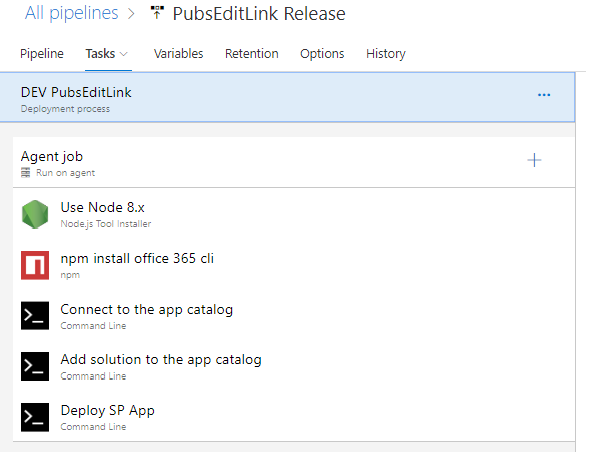
3. The third tip is to set up the Release as in the screen shot below and verify the deployment. 


In order to trigger the release from build is to enable the push form Build as in the screen shot. Please note you could manually trigger the release and verify the result for each step.


4. The forth tip is to set up the security to protect the CI and CD. The permission can be configured as in the following screen shot.


5. The fifth tip is to back up the Build and Release. You could "clone" and "Export" the configuration for this purpose.

6. If your pipeline needs to retrieve secrets such as authentication keys, storage account keys, data encrypted keys, .PFX files, and password, you should use Azure Key Vault instead of in the local pipeline like variables. The detailed instruction is here.

I'll add other tips that would be helpful.

Wednesday, February 27, 2019

Different ways to apply SharePoint field customizer extension to existing multiple columns


SharePoint Extensions can be deployed to SharePoint Online, and you can use modern JavaScript tools and libraries to build them. The Field Customizer Extension allows modifying the Views of the field in a list view. It can be used to override the field representation in the list. Field Customizer can be used with site columns or directly to the field inside a list. Microsoftarticle shows the detailed step to create the Field Customizer Extension but with limited instruction to apply it to existing list columns. Here are multiple ways to apply Field Customizer Extension to existing list columns.

The way to do this is to ClientSiteComponentId GUID attribute of Field Customizer for the existing field. There are few ways to implement this.

1. The first way is to use CSOM PowerShell to update ClientSiteComponentId attribute.

$siteURL = "https://mycompany.sharepoint.com/sites/Harry-PM-Testing"

$userId = "admin@mycompany.onmicrosoft.com"
$pwd = Read-Host -Prompt "Please enter your password" -AsSecureString
$creds = New-Object Microsoft.SharePoint.Client.SharePointOnlineCredentials($userId,$pwd)

$listTitle = "Order"
$existingColumnName = "SPFxExeColumn"
$ClientSideComponentId = "acd4d36c-a4ad-123c-a123-93862bd52123"

$ctx = New-Object Microsoft.SharePoint.Client.ClientContext($siteUrl)
$ctx.Credentials = $creds 

try{
    $lists = $ctx.web.Lists
    $list = $lists.GetByTitle($listTitle)
    $listItems = $list.GetItems([Microsoft.SharePoint.Client.CamlQuery]::CreateAllItemsQuery())
    $ctx.load($listItems)
    $ctx.load($list.Fields)
    $ctx.executeQuery()

    $field = $list.Fields.GetByInternalNameOrTitle($existingColumnName)
    $guid = [GUID]$ClientSideComponentId
    $field.ClientSideComponentId=$guid
    $field.update()
    $ctx.Load($field)
    $ctx.executeQuery()

}
catch{
    write-host "$($_.Exception.Message)" - foregroundcolore red
}   


2. The second is to use REST API like mentioned here.

3. The third easiest way is to use the PnP PowerShell like below.

$siteURL = "https://ionisdevops.sharepoint.com/sites/Harry-PM-Testing"

$listTitle = "Order"
$existingColumnName = "SPFxExeColumn"
$ClientSideComponentId = "acd4d36c-a4ad-449c-a312-93862bd52376"
  
Connect-PnPOnline -Url $siteurl  

$guid = [GUID]$ClientSideComponentId
Set-PnPField -List $listTitle -Identity $existingColumnName -Values @{ClientSideComponentId=$guid} -UpdateExistingLists

You can apply the same Field Customizer to as many existing fields as you like as long as the field has all the required schema as the the original list. The fields do not need to be the same type like "Number" since it will not matter.


If you need to apply other SPFx extension like custom action to whole tenant, please refer to other blog.


Tuesday, February 19, 2019

Approaches to enable modern site experience at the root of a SharePoint tenant


After Microsoft release modern site experience, there is a request for existing customers to enable such modern experience at the root of a SharePoint tenant. There are two different ways at this time.  You might decide based on your urgency and requirement.

The first way is traditional way as described in here. The approach is to delete the root site and recreate it.

The second way is to use Microsoft PowerShell Enable-CommSite to convert to modern site. However, as of today the command is still not available globally.

If  enabling modern site experience at the root of a SharePoint tenant is not urgent, I would recommend you might wait for the PowerShell to be release.

Thursday, February 14, 2019

Procedure to add Full-width column SPFx webpart without fat banner, any horizontal margin or padding, or users' comments

Modern SharePoint pages support layouts that allow users to organize the information they present on their pages. When you add a custom webpart, the default behavior is like below screenshot.


There are some cases that users would like to have a pages modern SharePoint pages with custom SPFx webpart without fat banner, without any horizontal margin or padding, or users' comments as highlighted from the screenshot. This has been reflected in user voice. Here are the detailed steps to implement.

1. The first step is to remove the fat banner on the page like communication modern page. There are at least two different ways to implement this. The difficult way is to develop and deploy a custom SPFx webpart to hide it as described in Mikael Svenson’s blog.  Another easy way is to copy the home.aspx page and rename to your page. Then this page will NOT have the fat banner as described in Rajesh Sitaraman’s blog.

2. The second step is to implement the SPFx as Full-width webpart. This can be done quickly by adding the below configuration code to the YourWebPart.manifest.jason file\ as described in Microsoft’s blog.  

"supportsFullBleed": true,

Then you need to add this webpart as Full-width column webpart. You might need to go to the “Site Pages” library and then click “Site Page” on the ribbon in order to get the Full-width column webpart option for the page. Sometime you would not see Full-width column webpart option if you click “App Page”.

3. The third step is to hide the user Comments. This can be done quickly by following the instruction provided by Greg

The updated page with the same webpart now displays much clean as in the below screenshot.


4. The forth thing is to remove the "Feedback" button. This is similar to we described before to use SPFx webpart to hide it as described in Harjit’s blog

5. The final one is to remove the "Like" "Save for later" at the bottom of the page. We may also use SPFx with css to hide this as in previous session.

I've not implement step 4 or 5 yest but the page already look much clean. Hope this would help.


Wednesday, February 13, 2019

How Microsoft completely failed to protect SharePoint Online files with Office 365 labels and DLP


Microsoft provided a feature that users could apply Office 365 labels and data loss prevention (DLP) policies for SharePoint Online team sites with various levels of information protection. This looks exciting to design and deploy Office 365 labels and DLP policies for baseline, sensitive, and highly confidential SharePoint Online team sites highlighted in this Microsoft article.

One of the use case is to use SharePoint policy to label one document library as high sensitive and do not allow to share with external users. External users are no allowed to request access. After you configure the policy, the document in the library will have a small icon to indicate the policy. See the screenshot. This looks good so far.


However, after few days configuration, debugging, and discussion with Microsoft, this DLP feature seems to be funny and stupid that will fail completely! Here are few issues and I’ll provide the real life example to explain the details.

The first issue is after the label and policy applied, it may take one day to apply to SharePoint site and seven days to synced to the item. When you have policy enabled on the document library, any document uploaded will NOT have the policy until policy applied up to one day delay. In previous screenshot, you will see two documents do not have the policy applied at that time!

This is like a law officer like policeman add a "Stop" sign to the road. However, it will not take effect until a day later. Every new car arrived to this street will not see the sign until one day later. This is to every new car!!!

The second issue is user can edit the document properties and remove the label. See screenshot below.


This is like a law officer like policeman add a "Stop" sign to the road. However, driver can remove the stop sign! Every driver can remove the stop sign!!!


The third issue is user can edit the document properties and change the label to a different one event it is not assigned to this library. See screenshot above there are two labels.

This is like a law officer like policeman add a "Stop" sign to the road. However, driver can change it to a different sign like "Slow" sign! Every driver can change the sign to ANY other sign available!!!

Now you will understand why SharePoint Online files with Office 365 labels and DLP protection feature is so funny and stupid! I've raise the user voice in Microsoft user voice site.

Tuesday, February 5, 2019

How to fix SharePoint 2013 workflow missing issue on SharePoint online site?

If users could not find the out of box SharePoint 2013 workflow on SharePoint online site, here are two different ways to verify and fix the issue.

The first way is to click "Setting"->"Workflow Settings"->"Work Flows"->"Workflow Health" and then activate "The workflow service store feature" as described here.

If you would to fix on multiple site collections, here are the PowerShell script you can run against the site.

1. Install SharePoint online PnP PowerShell package.

Install-Module SharePointPnPPowerShellOnline

2. Check the WorkflowServiceStore site collection feature

Connect-PnPOnline -Url <Site URL>
Get-PnPFeature -Identity 2c63df2b-ceab-42c6-aeff-b3968162d4b1

3. Enable the WorkflowServiceStore site collection feature

Enable-PnPFeature -Identity 2c63df2b-ceab-42c6-aeff-b3968162d4b1 -Force

That's it.