If you add new managed metadata column to a list or site column, you may come across the error ‘The default termstore for this site cannot be identified’ as in the screen shot.
The way to fix this is quite simple. You need to configure “Managed Metadata Service Connection”. Go to Central Admin -> Application Management -> Manage service applications -> Highlight the Managed Metadata Service Connection the webapp is using -> Click Properties from Ribbon.
Check “This service application is the default storage location for column specific term sets.” So you could use the service as default location to store metadata column. You would need to do this for each webapp if you need to use it across the webapp. Since you could have multiple Managed Metadata Services for one webapp, you would need to configure the default one. This is same if you need to store the key words.
The reason you see the red warning in previous screen shot when configure the MMS connection is I have more than one MMS on the farm.
Please refer other blog on managed metadata service.
We have identified an issue on email enabled list no longer receiving emails after 2007 to 2010 upgrade in previous blog. Recently during SP1 + June CU upgrade, we found when you migrate the content from one farm to another farm, we have the same issue that the email enabled list no longer receiving emails again!
It’s very common to refresh non-production content Dbs by detaching from product and attaching to non-production. One of the use cases is to get latest data from production farm to QA farm for upgrade testing. The result is all the email enabled list no longer receive emails. This is consider as a bug for content DB detaching and attaching!
After I looked at the SharePoint databases tables, it seems like the issue is the email enabled list setting has entries in configuration database that did not carry over from after content DB detaching from one farm to another. The table is in configuration database table named EmailEnabledLists. Here is the way to confirm this issue.
1.Detach one content DB from farm 1
2.Attach the content DB to farm 2 and assume this is new farm
3.View farm 2 configuration DB table EmailEnabledLists and you will see many entries
4.View farm 1 configuration DB table EmailEnabledLists and you will see not see any entry
5.Email enabled list on farm 2 will not receive emails
The configuration database table EmailEnabledLists hold all email enabled entries including email alias name, site collection ID, web ID, List ID, and flag whether it has been deleted. On one dev box, I have two site collections (../harryc, ../harrycc, ../harryc/harryc22) and one sub-site. Each has one email enabled list with email alias as hbxHarry, harryc2, harryc22. You could get the enabled list entries from configuration database table using the following script.
/****** Script for SelectTopNRows command from SSMS ******/
SELECTTOP 1000 [Alias]
,[SiteId]
,[WebId]
,[ListId]
,[Deleted]
FROM [sbx_config].[dbo].[EmailEnabledLists]
The result is listed in the below screen shot.
It's very clear that after content DB attached to new farm, the entries from source configuration DB table EmailEnabledLists are not recreated after content DB attached. As a result, we have two woraround to fix this issue.
The first workaround is to copy the EmailEnabledLists table content form source farm to destination farmafter content DB attached. This will rebuild the email enabled list to new farm.
The second workaround is similar to what we described before to reset each email enabled list. You could use API to loop through each webapp, each site collection, each site, and each list. Then reset the email alias to original value. After email alias reset, you basically add the entry to new farm configuration DB table EmailEnabledLists. You could verify by querying the table. The following code snippet you could use to reset the email alias.
foreach (SPList list in web.Lists)
{
if (!string.IsNullOrEmpty(list.EmailAlias))
{
//Preserve the Email Alias value in temp variable before deleting the value.
previousEmailAlias = list.EmailAlias;
//Reset Email Alias with same value
list.EmailAlias = previousEmailAlias;
list.Update();
//Email Alias will be added into new farm configuration database table EmailEnabledLists
}
}
You should add try and catch to your code and follow development best practice. Hope this could help you to migrate content with email enabled list to different farm.
After SharePoint 2010 upgrade to SP1 + June CU, we have identified none of the out of box approval workflows in “In Progress” status BEFORE the upgrade could not be approved. Any actions linked to the tasks such as approve will cause server error as in the screen shot.
The server error to approve is:
The error when to approve the "In Progress" workflow after SP1 + June CU upgrade is:
10/12/2011 15:57:28.72 w3wp.exe (0x21B4) 0x0F1C SharePoint Foundation Runtime tkau Unexpected Microsoft.SharePoint.SPException: This task is currently locked by a running workflow and cannot be edited. at Microsoft.SharePoint.SPListItem.PrepareItemForUpdate(SPWeb web, Boolean bMigration, Boolean& bAdd, Boolean& bPublish, Object& objAttachmentNames, Object& objAttachmentContents, Int32& parentFolderId) at Microsoft.SharePoint.SPListItem.UpdateInternal(Boolean bSystem, Boolean bPreserveItemVersion, Guid newGuidOnAdd, Boolean bMigration, Boolean bPublish, Boolean bNoVersion, Boolean bCheckOut, Boolean bCheckin, Boolean suppressAfterEvents, String filename) at Microsoft.SharePoint.SPListItem.Update() at Microsoft.SharePoint.Workflow.SPWorkflowTask.AlterTask(SPListItem task, Hashtable htData, Boolean fSynchronous) at Microsoft.Office.Workflow.WrkTaskIPPage.XmlFormCont... 9f148c32-5a87-4dcb-829f-ec115a04630b
The server error to change the approval is:
Engine RunWorkflow: System.Workflow.Activities.EventDeliveryFailedException: Event "OnWorkflowModified" on interface type "Microsoft.SharePoint.Workflow.IWorkflowModificationService" for instance id "99cafa83-54a4-443f-815c-d5a10bfb4d9c" cannot be delivered. ---> System.Runtime.Serialization.SerializationException: The object with ID 501 implements the IObjectReference interface for which all dependencies cannot be resolved. The likely cause is two instances of IObjectReference that have a mutual dependency on each other. at System.Runtime.Serialization.ObjectManager.GetCompletionInfo(FixupHolder fixup, ObjectHolder& holder, Object& member, Boolean bThrowIfMissing) at System.Runtime.Serialization.ObjectManager.CompleteObject(ObjectHolder holder, Boolean bObjectFullyComplete) at... ac48e2b0-55ee-4241-b9c3-9cf0aeb01c2b
We have noticed some other people also noticed this issue. The workaround seems to terminate the workflow and restart it again manually. Since there are over 1500 "In Progress" workflows in production at this time, we are thinking to use API to reset workflow locker automatically similar to the suggestion published before. This may require some additional research before final solution.
This has been reproduced from Microsoft side and cases submitted.
If anyone has better solution, please let us know.
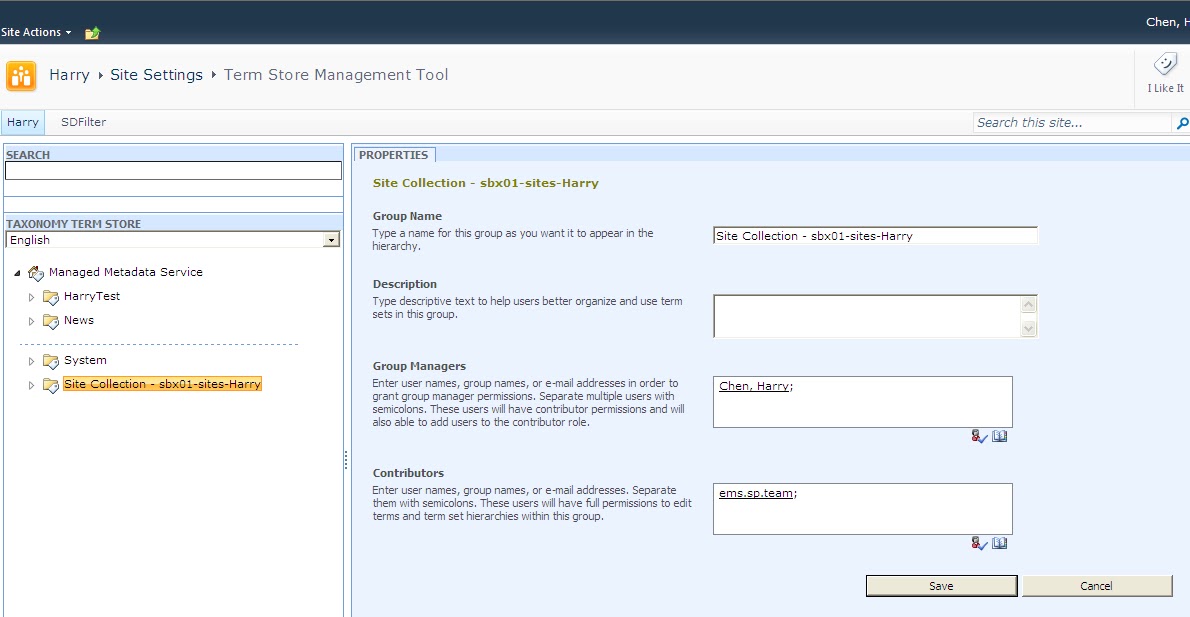
In previous blog, I have provide a workaround to to delete users from Contributors group with error “The specified user is not a contributor on this group. Deletion of this user as a contributor failed”. You may have a question why this happened in the first place and how we could prevent it.
First, I would like to emphasize Kerberos is enabled on our SharePoint server. This might be a key contributor to the issue as I will illustrate in this blog. If you have claim based or ADFS based authentication, you might have the similar issue.
Scond, you could check previous blog to understand the issue - try to delete “All users (window)” to Contributors group, we are getting the following error “The specified user is not a contributor on this group. Deletion of this user as a contributor failed.” and user could not be deleted. The key looks here is we could not delete ONLY AD groups not individual users while you have Kerberos enabled!
Third, you could use the following steps to reproduce the issue.
1.Create a managed metadata column on any list on the site collection
2.Site Actions -> Set Settings -> Term Store Management -> Click the site collection term store “Site Collection – sbx01-site-Harry”
3.Type any AD group like ”ems.sp.team” to Contributor group and click “Check names”
4.Try to delete the group ”ems.sp.team” and get error “The specified user is not a contributor on this group. Deletion of this user as a contributor failed.”
Fourth, you could verify the table ECMPermission and the PrincipalName is like window claim based format group SID format “c:0+.w|s-1-5-21-945540591-4024260831-3861152641-326370” for group “NA\ems.sp.team”.
Since we had similar issue when we implemented the ADFS with SharePoint. We believe the issue is when we try to delete the group and passing the group name, it may not find the correct group since the group name could not be converted to compare with SID. This is another reason we should not implement ADFS for SharePoint at this time.
Another interesting thing is we were able to delete the group sometime but not constantly. We will follow up with Microsoft to verify whether there is any solution.
Today on 1/24/2012, we received notification from Microsoft that this has been confirmed as bug and targeted to be foxed in April 2010 CU.
Please refer to other blog on managed metadata service.